What to do if S Pen isn't working with Galaxy phone screen
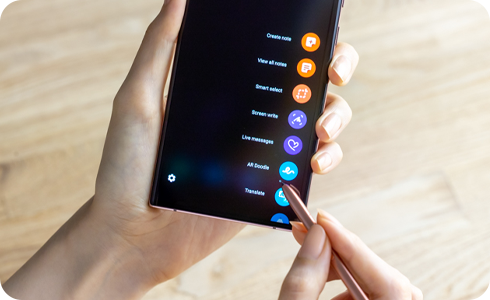
If ‘Swipe gestures’ mode in the Navigation bar menu is switched on, your S pen may not work properly on the bottom part of your device’s display. This is because your S Pen action may be being recognised as a ‘Swipe gesture’.
In order for your S pen to work properly on the bottom part of your device’s display, follow the steps below.
Option 1: Enable ‘Block gestures with S pen’ so that S pen actions are recognised.
1
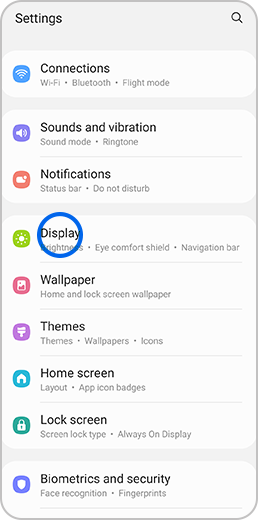
Go to Settings, then tap Display
![Display option in settings selected]()
2
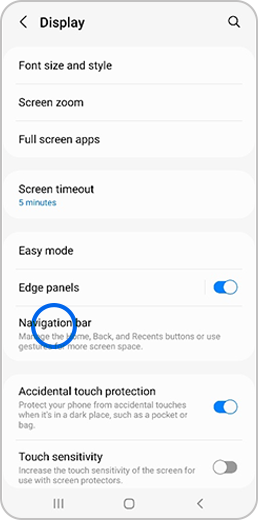
Tap Navigation bar
![Navigation bar in Display settings selected]()
3
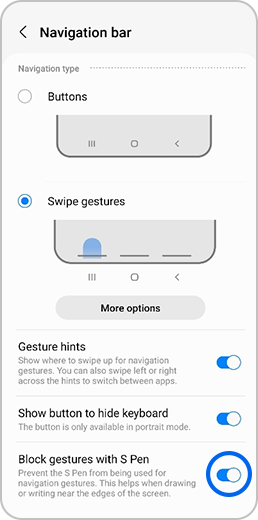
In Swipe gestures section slide the toggle to enable Block gestures with S Pen
![Block gestures with S Pen toggled on]()
Option 2: Make change to ‘Buttons’ type in the Navigation bar menu
1
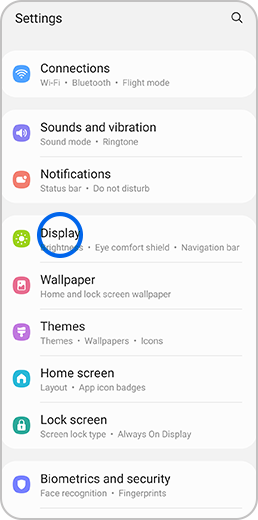
Go to Settings, then tap Display
![Display option in settings selected]()
2
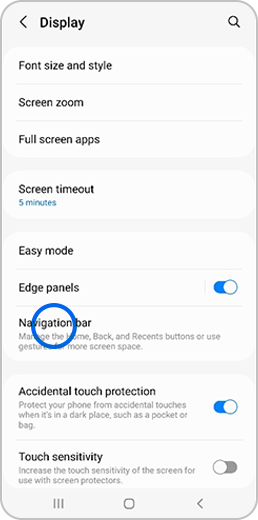
Tap Navigation bar
![Navigation bar in Display settings selected]()
3
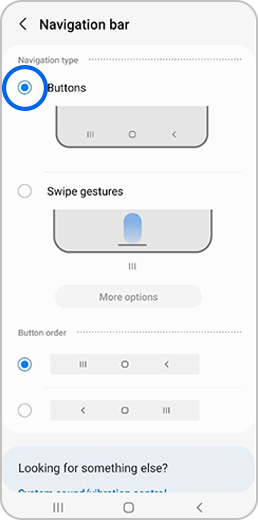
Select the option next to Buttons
![Option next to Buttons selected]()
Thank you for your feedback!
Please answer all questions.
*Operates as a price discount: Buy the larger storage variant (512GB) by 10/03/26 and pay the future price of the smaller storage variant (256GB).